
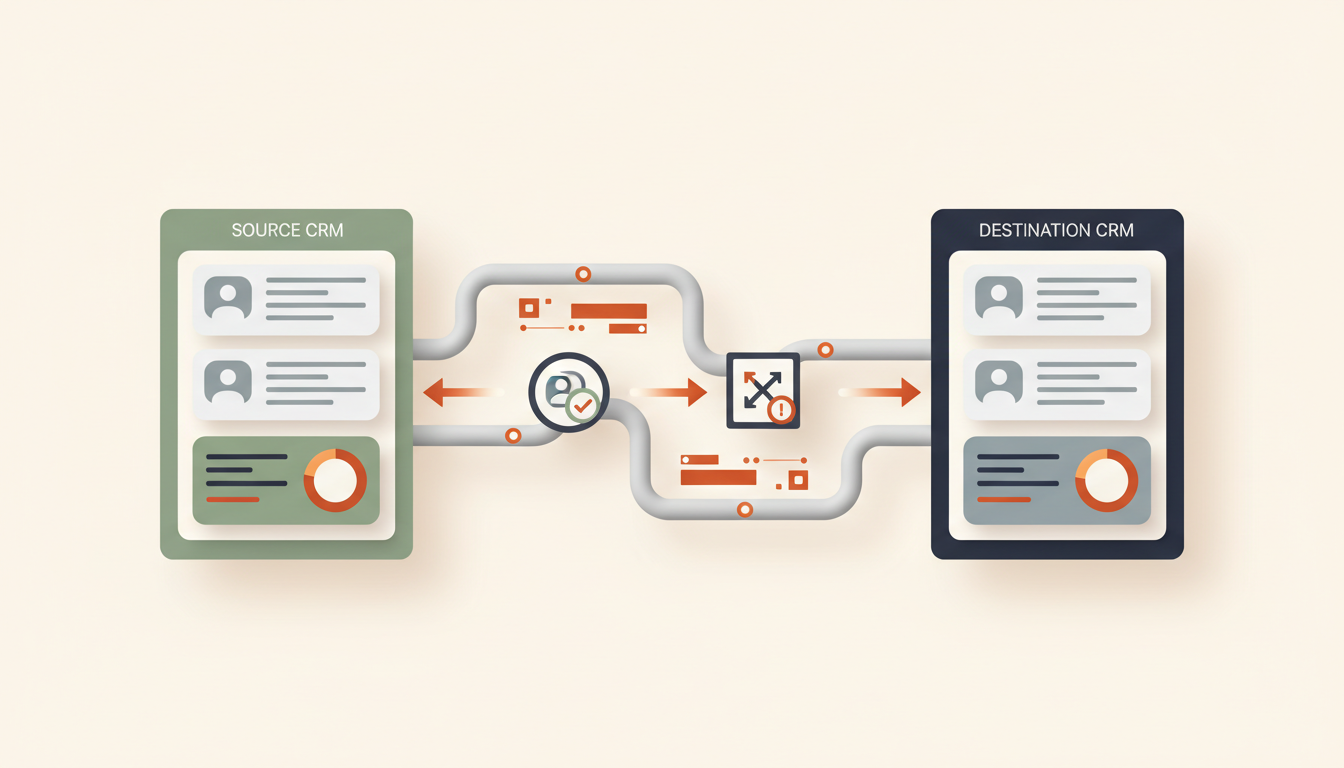
When leads arrive through forms, email, ads, or support conversations, teams often end up entering the same contact in more than one system. Sales may work in HubSpot or Pipedrive, while another tool handles forms, billing, support, or marketing. Without a deliberate sync process, records drift apart, activities disappear, and representatives waste time correcting duplicates.
A reliable CRM integration does more than copy fields. It defines which system owns each piece of data, how records are matched, which changes should flow in which direction, how related contacts and deals are linked, and what happens when two systems disagree. This guide explains how to plan that workflow before connecting your accounts.
What should a CRM sync workflow do?
- Capture changes: Detect a new or updated lead, contact, company, organization, or deal from an authorized source.
- Normalize data: Convert fields and values into an agreed format without silently changing their meaning.
- Match records: Find the corresponding record in the destination before creating anything new.
- Map fields: Match source properties to destination fields, including custom fields where needed.
- Preserve relationships: Link contacts to companies or organizations and connect people to the correct deal.
- Apply conflict rules: Decide what happens when a field differs in the source and destination.
- Log the result: Store sync status, record IDs, timestamps, and errors so failed updates can be investigated safely.
1. Decide whether you need one-way or two-way sync
Start with the business outcome, not the connector. For example, a lead-capture form might send new prospects into one CRM, while sales staff manage owners and deal stages only inside that CRM. In that case, a one-way flow may be sufficient. A two-way integration is useful only when people genuinely need to update the same data in both systems and you have explicit rules for deciding which change wins.
- One-way sync: A single system or event source sends selected fields to the destination. This is usually easier to monitor and debug.
- Two-way sync: Changes from either system can update the other. It requires stronger conflict detection, loop prevention, and field-level ownership rules.
- Event-driven sync: A new or updated record triggers a workflow shortly after the event. This can reduce delay, but the integration must handle retries and repeated notifications.
- Scheduled reconciliation: A periodic job compares selected records to catch missed events or drift. It complements event-driven sync but needs careful pagination and volume controls.
Do not synchronize every field in both directions by default. For example, a marketing source might own the original acquisition source, the sales CRM might own deal stage and sales owner, and a billing system might own payment status. The integration should preserve those boundaries.
2. Build a field-mapping contract
Create a mapping document before creating the workflow. A field with the same label can have a different meaning, allowed value set, or data type in another CRM. Explicitly map field names, formats, required values, and the system that owns each property.
- Identity: Source record ID, destination record ID, email or other permitted matching keys, and the source system name.
- Person and company: Name, work email, phone, company or organization, and any required associations.
- Lead qualification: Lead source, lifecycle status, qualification criteria, consent or subscription fields where applicable, and next action.
- Sales pipeline: Deal title, pipeline, stage, owner, estimated value, currency, and close date if the destination supports those fields and the business uses them.
- Custom fields: The exact destination property and allowed values, including how empty or unknown values should be handled.
- Sync metadata: Last successful sync time, source update time, processing status, and an error or review reason.
Define how to handle null values. An empty source field should not automatically erase a valid destination value unless clearing that field is an intentional business action. Likewise, do not convert different meanings—such as “unknown,” “not provided,” and “not applicable”—into the same value without agreement.
3. Match existing records before creating new ones
Duplicate prevention is one of the most important parts of CRM sync. A repeated webhook or a second form submission should not create another contact or deal merely because the workflow did not check the destination first.
- Use the stored destination record ID whenever a reliable mapping already exists.
- If no mapping exists, search using a carefully chosen business identifier such as a normalized email address where appropriate, or a stable external ID.
- Normalize whitespace and case consistently for comparison, but do not assume names or phone numbers uniquely identify people.
- When multiple candidates match, do not choose one at random; route the case for review or apply a documented match policy.
- After creating a record, save the destination ID and source ID together so future updates target the same record.
An email address can change, be shared, or be entered differently, so it should not be treated as a universal identity key for every business. Choose identifiers according to your data quality and privacy rules, and keep a human path for ambiguous matches.
4. Handle contacts, companies, and deals as related records
CRMs do not store every piece of sales information as an isolated row. A person may belong to a company or organization, and a deal may be associated with a person, organization, owner, and pipeline stage. Copying the fields while ignoring these relationships can create records that look complete but are disconnected from the sales process.
HubSpot’s CRM documentation describes standard objects such as contacts, companies, deals, and tickets, plus the associations that link records. Pipedrive has separate people, organizations, and deal objects, with deals associated with people or organizations. Use the destination’s actual object model and confirm that association operations are supported by your connector and account.
5. Define conflict rules before enabling two-way sync
Imagine an account owner updates a contact’s title in HubSpot while an enrichment tool updates the same field in Pipedrive. If both systems continually overwrite each other, the workflow can oscillate or restore stale data. A conflict policy should determine which change is authoritative and when a person must decide.
- Field-level ownership: Specify the system that owns each important field; avoid a single rule that assumes one CRM owns everything.
- Update timestamp: Use source timestamps where they are trustworthy, while accounting for delayed events and different timezone representations.
- Change origin: Record which workflow or integration made an update so a sync event caused by the integration itself does not trigger an endless loop.
- Concurrent edits: When both systems changed the same field since the last sync, compare the actual values and route high-impact conflicts for review.
- Deletion and archival: Treat record deletion as a separate, carefully controlled event. A missing record in a partial fetch does not necessarily mean it was deleted.
- Manual override: Agree whether an intentional human edit can supersede an integration value and how that decision persists.
6. Use webhooks and APIs responsibly
Webhooks can notify a workflow that a record changed, while API calls retrieve the details and perform the required update. HubSpot’s official guide explains that webhooks can send real-time notifications for subscribed events, avoiding the need to poll continuously. Pipedrive also provides webhook subscriptions for supported object events. These mechanisms still require authentication, endpoint security, error handling, and validation of the event before acting on it.
CRM APIs evolve. HubSpot’s developer documentation now includes a date-versioned API reference for the 2026-03 release, while Pipedrive documents its v1 and v2 APIs. Prefer the current official reference and the supported version of your integration rather than copying an old endpoint from a tutorial. Verify authentication scopes, rate limits, pagination, field requirements, and account or plan restrictions.
- Authenticate using the recommended OAuth or private-app approach for the integration you are building; keep tokens in the platform’s credential store.
- Acknowledge webhook delivery promptly, then process the event safely and asynchronously where appropriate.
- Validate the event type, object ID, and permitted properties before reading or updating a record.
- Respect API limits and pagination. Use backoff for retryable rate-limit or transient errors, and do not retry invalid data indefinitely.
- Store enough context to replay a failed sync without creating a duplicate record.
7. A practical workflow in n8n, Make, or Zapier
The exact modules and supported actions depend on your accounts, permissions, and connector version. A vendor may offer native contact actions but not every association or property update you require, so verify the actual operations before finalizing the design.
- Trigger: Receive a new lead or a record-change event from the approved source.
- Validate: Check required fields, event ID, object type, and whether the event was already processed.
- Map: Normalize field names, email format, phone format, dates, currencies, and allowed status values.
- Find or create: Look up the mapped source/destination record ID and search for a permitted match before creating a new item.
- Associate: Link the contact to the correct company or organization and connect the deal according to the destination model.
- Resolve conflicts: Apply field-ownership and update rules; stop for human review when no safe rule applies.
- Write and confirm: Perform the update and record the destination ID and returned status.
- Reconcile and report: Periodically check for failed records, stale mappings, and mismatched field values.
For the planning phase, see our guide to turning a business process into an AI workflow blueprint. For a simpler lead-record flow without a full CRM, our guide to automating sales tracking with Google Sheets and n8n provides a related starting point.
8. Protect customer data and control access
CRM records can contain contact details, sales history, support information, and notes that are not appropriate for every system or recipient. Sync only the necessary fields, verify the purpose and permissions for each destination, restrict credentials to the required objects and actions, and avoid copying sensitive notes into broad-access tools. Define retention and removal processes so that privacy-related changes are handled consistently across connected systems.
Keep secrets out of workflow logs and execution screenshots. If a sync fails, log the source and destination identifiers, error category, and retry status, rather than dumping entire contact records into notifications. Where data must be shared across regions or service providers, confirm that your organization’s privacy and contractual requirements are satisfied.
9. Test both the happy path and the failure paths
Test with a small set of records before syncing a full database. Include new contacts, existing contacts with changed fields, contacts with missing email addresses, two people with similar names, a company with multiple contacts, a deal in a changed stage, a conflicting manual edit, a repeated webhook event, and a temporary API failure.
- Confirm that each source record maps to one intended destination record.
- Check that company and deal associations are preserved, not just contact fields.
- Verify that empty source values do not erase useful destination data unless explicitly allowed.
- Make sure a sync-generated update does not trigger an infinite loop.
- Test retries, rate limits, pagination, and partial failures.
- Confirm that deletion, archiving, and opt-out events follow a documented policy.
- Reconcile a sample of synced records against both systems and keep an audit trail of mismatches.
10. Measure the quality of the sync
Track the number of records processed, duplicate records prevented, failed updates, unresolved conflicts, time to sync, and percentage of records that match between systems. Also measure how much manual correction the team still performs and whether lead ownership and follow-up tasks arrive in the right place.
Include platform costs, API or workflow operations, maintenance, and staff review time when estimating the total expense. Our guide to estimating AI automation costs before building explains how to account for recurring usage and service costs.
Common mistakes to avoid
- Syncing every field in both directions: Start with a limited scope and explicit field ownership.
- Creating before searching: Match a record and store its destination ID before inserting a new one.
- Assuming similar field names mean equivalent data: Check definitions, formats, and allowed values.
- Ignoring associations: Preserve the relationships between people, companies, and deals.
- Overwriting conflicts without a policy: Use deterministic rules and human review for ambiguous or important changes.
- Ignoring retries and rate limits: Make updates idempotent and handle partial failures visibly.
- Copying too much customer information: Sync only what the destination needs and is authorized to hold.
Frequently asked questions
Should HubSpot or Pipedrive be the master CRM?
Choose based on where the team actually manages each process and which fields must be authoritative. You can designate different owners for different field groups, but write the rule down and test conflicts before enabling two-way sync.
Can I sync only new leads first?
Yes. A limited pilot that creates or updates a small set of new lead records is often easier to verify than a full historic import. Add existing records, associations, deal stages, and two-way edits gradually after duplicate handling and error recovery work as expected.
Is a no-code connector always enough?
Not always. A native integration may cover common fields and actions, while a complex mapping, custom object, association, or conflict policy may require API calls or custom logic. Check actual connector capabilities, API permissions, and maintenance needs before deciding.
Start with one reliable flow
Begin with one direction, a small set of fields, a clear matching rule, and a defined owner for each property. Prevent duplicates, preserve associations, and make failures visible. Only add two-way updates when you have a conflict policy and test results that show the data will remain consistent.
Use the AI Automation Assessment to define the current process, then use the AI Workflow Builder to organize triggers, field mapping, matching, update rules, and error handling before implementation.