
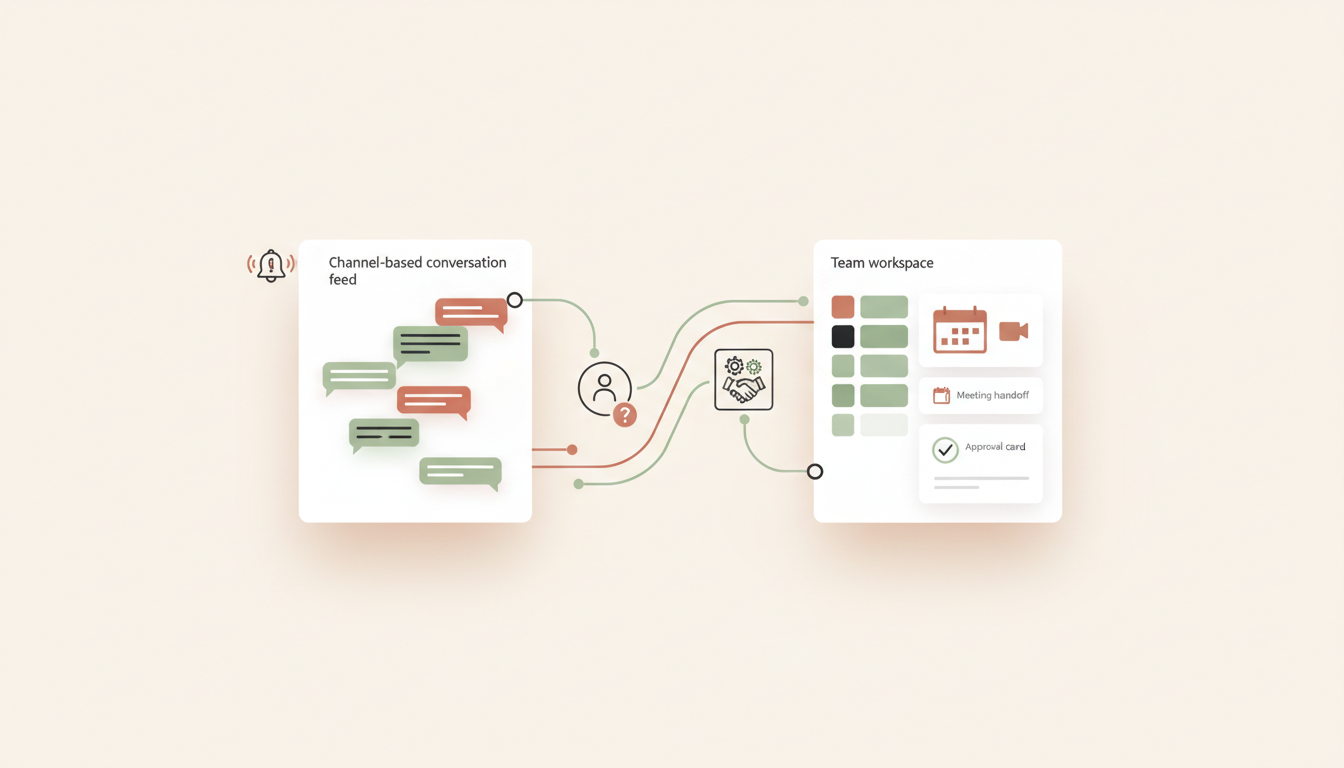
Slack and Microsoft Teams can both carry important automation messages, but the right choice depends on how your organization works and what the person receiving a message must do next. An informational alert is not the same as an approval request, and a chat message is not a reliable workflow record by itself.
This comparison focuses on automation alerts, approvals, and handoffs—not a general comparison of chat apps. It covers each platform’s native options, an example lead-routing workflow, and the design rules that help prevent missed requests, duplicate notifications, and unsafe automatic actions.
Quick answer
Choose Slack when your team already organizes day-to-day work in channels and wants to use Workflow Builder for lightweight forms, reminders, and connected workflow steps. Choose Microsoft Teams when the organization already runs work in Teams and needs approvals or messages integrated with Microsoft’s Power Automate ecosystem. Neither choice is automatically better: permissions, available connectors, plan limits, governance, and existing work habits matter.
Before choosing a notification tool, decide what the workflow needs to achieve. AutoFlow’s AI Automation Assessment can help clarify the process, while the AI Workflow Builder helps turn it into a blueprint with triggers, actions, rules, and human checkpoints.
Slack vs Microsoft Teams at a glance
| Decision area | Slack | Microsoft Teams |
|---|---|---|
| Native workflow option | Workflow Builder for routine tasks, information collection, reminders, and connected steps | Teams workflows commonly use Power Automate; Teams also has a native Approvals app |
| Useful message patterns | Channel notifications, request forms, recurring reminders, and connector steps | Channel or chat messages, Flow bot notifications, and approval cards |
| Approval handling | Can route a request into an established workflow; design the approval state and record explicitly | Approvals can be initiated and managed in Teams; Power Automate can add custom pre- or post-approval actions |
| Integration consideration | Workflow connectors may need workspace or organization approval | Connector connections, environment policy, app availability, and flow-sharing permissions may affect who can run a workflow |
| Best fit | Teams already operating through Slack channels and Slack-centered workflows | Organizations already using Teams and Microsoft 365/Power Automate patterns |
| Main risk | A message can be mistaken for the system of record or important decisions can be buried in a channel | An automation may work for its owner but not for other people if permissions and flow sharing are not configured |
1. What Slack Workflow Builder is useful for
Slack’s official documentation describes workflows as a way to simplify routine work, including collecting information and sending reminders. A team can use a form to collect a request, route a notification to the right channel, or add connector steps that operate in another service. The available connector list includes products such as Airtable, Notion, and Microsoft Teams-related services, though exact steps and administrative approval can vary.
For example, a team might collect a campaign request in Slack, ask for a deadline and owner, then notify the channel when the request is ready for review. This works best when Slack is already where the team checks assignments and discusses exceptions. Avoid relying on a channel message alone as the only record that a request exists.
Before publishing a Slack workflow, verify that its connectors are allowed in your workspace. Slack notes that owners or administrators can control access to Workflow Builder features and steps. Official references: What is a Slack workflow? and Slack connectors for Workflow Builder.
2. What Microsoft Teams and Power Automate are useful for
Microsoft Teams has an Approvals app for creating, managing, and responding to approval requests from the collaboration hub. Microsoft documents that these approvals use Power Automate infrastructure; custom steps before or after the approval can be built in a flow. This is a useful distinction: the approval request and the business process around it may be two related components.
Power Automate can also post messages to a Teams channel or group chat, including messages posted as the Flow bot or as the connected user, depending on the action and configuration. That makes it possible to send a structured notification with a record link, priority, owner, and the next action. Access and policy settings still matter: the required apps, connectors, environment, and sharing permissions must be available to the people who will use the flow.
See Microsoft’s official guides: Approvals in Microsoft Teams and Send a message in Teams using Power Automate.
3. Example: route a high-priority customer inquiry
Imagine a new inquiry arrives from a website, social channel, or email. The automation captures the data, checks the required fields, assigns a priority, and creates or updates a record in the team’s source-of-truth system. Slack or Teams then makes the next step visible to a human.
Keep the business logic independent of the chat app
- Trigger: a new inquiry is recorded in the chosen CRM or intake database.
- Validate: check that the request ID, contact path, request type, and owner fields are present. If required information is missing, route it to correction.
- Classify: apply explicit rules first; use AI only where it adds value, and route uncertain or sensitive cases to a person.
- Route: send high-priority cases to the designated channel or approval path. Send routine cases to the owner without broadcasting every record to everyone.
- Act: the recipient opens the authoritative record and performs the next step. Record the decision in the source system.
- Confirm: send a completion message or escalation when the action is finished or overdue.
Slack version
Send one concise message to the designated channel when the lead meets the high-priority rule. Include a short reason, the assigned owner, a due time, and a link to the source record. If a person must approve an offer, refund, or sensitive response, use an explicit workflow step and save the decision outside the message thread as well.
Teams version
Send the notification to the appropriate Team/channel or group chat using a configured Power Automate flow. If the process requires a formal approve/reject decision, use the Teams Approvals experience or an approval action in Power Automate, then write the result back to the source record. Make sure the flow is shared with the colleagues who must trigger or maintain it; do not assume the flow owner’s permissions automatically apply to everyone.
4. Compare the two tools against your actual constraints
- Where does your team already work? A notification only helps if the right person sees and acts on it. Choose the platform that is already part of the team’s routine.
- Is the message informational or an approval? For an approval, define the approver, choices, timeout, escalation, and the system that stores the decision.
- Do you need custom integrations? Check the current connector and plan requirements before promising that a particular action is available.
- Who owns the workflow? Identify the owner, backup maintainer, credentials, and process for handling a disconnected account.
- Can the result be audited? The underlying record should show who approved, rejected, changed, or closed the request and when.
- What happens when delivery fails? The source process must retain the pending work and offer a recovery path rather than losing it inside an error message.
5. Make notifications actionable—not noisy
Automation notifications lose value when they contain every update, hide the next action, or repeatedly alert different channels for the same event. Design a small, stable message contract before building the workflow.
- Identity: unique request or record ID and a direct link to the source.
- Context: a short reason for the alert and only the minimum customer information needed to respond.
- Ownership: a named owner or role, not a vague “team should follow up.”
- Timing: a due time or escalation rule when it actually matters.
- Action: one clear next step such as review, approve, update, or contact.
- State: make clear whether the message is new, waiting, approved, rejected, or complete.
Avoid putting passwords, API keys, payment information, or unnecessary customer-sensitive details into chat messages. Link to a properly permissioned record instead. Also use an idempotency key or stable request ID to prevent retries from generating duplicate tasks or repeated alerts.
6. A safe approval and escalation pattern
- Create the pending request in the source system before sending the notification.
- Send it to one accountable approver or defined approval group.
- Wait for an explicit outcome; do not interpret silence as approval.
- If the request expires, remind or escalate according to a documented rule.
- Write the decision and timestamp back to the source record.
- Only execute the consequential action after the recorded approval passes validation.
- Log errors and keep the item pending when notification or approval services are unavailable.
For sensitive actions—such as issuing a refund, committing to a price, deleting records, or sending a legally significant statement—keep human approval as a distinct state in the workflow. A chat reaction or message should not be treated as consent unless the process explicitly validates that action and preserves a reliable audit trail.
7. Should you use both Slack and Teams?
Usually, choose one primary destination for operational alerts. Sending each event to both platforms creates duplicates, fragments the conversation, and makes it harder to identify where the decision was made. Dual delivery can make sense when two separate groups have distinct responsibilities, but define which platform owns the conversation and which system records the outcome.
If the challenge is broader workflow design rather than just notifications, see What Is Workflow Automation? The Complete Guide and Small Business Automation Stack. Use the AI Automation Cost Estimator after mapping workflow volume, connectors, and approval steps.
8. Test the workflow before rollout
- Test a normal inquiry, a high-priority inquiry, and one with missing data.
- Verify that the right person or channel receives the message and that the direct record link opens with appropriate permissions.
- Test approve, reject, timeout, and escalation paths where applicable.
- Disconnect or deny a required connection in a test environment and confirm that the request stays visible and recoverable.
- Run the same event twice and verify that duplicate tasks and alerts are prevented.
- Confirm that a colleague other than the flow creator can run, respond to, and maintain the process as intended.
- Review delivery and execution logs, assign an owner for failures, and document how to pause the automation safely.
Frequently asked questions
Is Slack or Microsoft Teams better for automation?
Neither is universally better. Slack is a practical choice for teams already centered on Slack channels and Workflow Builder. Teams is often the natural choice for organizations using Teams and Power Automate, especially where approval workflows are already part of the Microsoft environment.
Can Airtable send alerts to Slack or Microsoft Teams?
Airtable’s official automation documentation lists Slack messaging and Microsoft Teams message actions among its supported action types, subject to plan limits and configuration. See the Airtable Automations guide for current details. Test the exact action in your workspace before basing a production process on it.
Does sending a Teams message automatically create an approval?
No. A normal notification and an approval are different actions. Use the Teams Approvals app or an appropriate Power Automate approval action when the process must capture an explicit decision, then record that decision in the source system.
Official documentation and review date
Feature references checked on October 13, 2026. Connector availability, plan entitlements, and administrative policies can change; verify the current settings in your organization before deployment.
- Slack: What is a Slack workflow?
- Slack: Workflow Builder connectors
- Microsoft: Approvals in Teams
- Microsoft: Send a message in Teams using Power Automate
Editorial note: Use the chat platform as the human interface, not the only system of record. Validate permissions, approval behavior, retry handling, and recordkeeping in the real workflow before enabling consequential actions.