
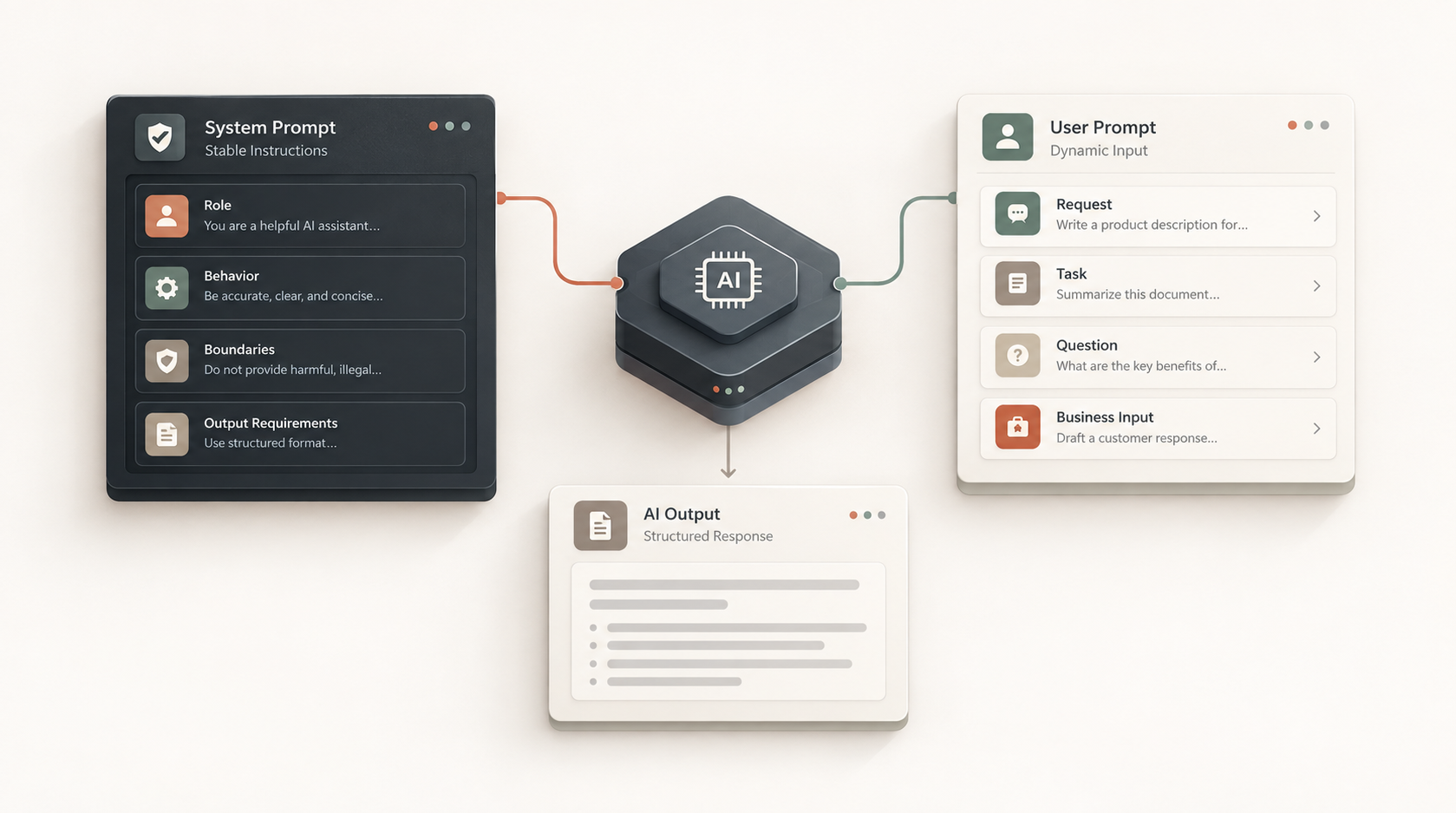
System prompts and user prompts serve different purposes. Understanding the distinction helps you build AI agents that behave consistently while still handling changing tasks and data.
Quick Answer
A system prompt defines the AI’s persistent role, rules, boundaries, and output behavior. A user prompt contains the task, question, or changing information for a particular interaction.
In an automation, the system prompt is usually stable while the user input changes from run to run.
What Is a System Prompt?
A system prompt is the operating instruction for an AI component. It establishes what the AI is responsible for and the rules it should follow.
For example: “You are a customer-support triage assistant. Classify incoming requests, identify missing information, and return the required JSON structure.”
What Is a User Prompt?
A user prompt provides the specific task or information to process.
For example: “A customer says their order arrived damaged and provides an order ID. Classify the request and identify any missing information.”
A Simple Analogy
Think of the system prompt as the job description and operating procedure. The user prompt is the individual work request. The job description stays mostly stable; the work request changes.
Why the Difference Matters in Automation
Automation workflows repeatedly process new records. You do not want to rebuild the AI’s role every time a new lead, ticket, document, or form submission arrives.
Keeping stable instructions in the system prompt and dynamic data in the user prompt makes the workflow easier to maintain and test.
Stable Instructions vs Dynamic Data
- System prompt: role, objective, rules, boundaries, process, output schema.
- User prompt: customer message, lead details, document text, current task, or other runtime data.
Example: Lead Qualification
The system prompt can define the qualification assistant’s responsibility, require it to extract only supplied information, forbid invented budget or timeline values, identify missing information, and return a defined JSON structure.
The user prompt then contains the actual lead record received from the form or CRM.
What Belongs in the System Prompt?
- The AI’s role and responsibility.
- Stable business rules.
- Required processing steps.
- Safety and escalation boundaries.
- Output requirements.
- Rules about missing or unavailable information.
What Belongs in the User Prompt?
- The current customer or lead data.
- The document or message being analyzed.
- The current task.
- Runtime context that changes between executions.
Context Is Not the Same as Rules
A common mistake is putting everything into one long instruction. Separate stable rules from changing business data. If the business rule changes, update the system instruction or configuration. If only the customer message changes, pass it as runtime input.
Structured Output
When an AI result feeds another automation step, define the output in the system instruction and provide the current data in the user prompt. For example, the system can require exactly these fields: category, summary, missing_information, and human_review_required.
Common Mistakes
- Repeating the entire system instruction in every user message.
- Putting business rules only in the user prompt.
- Mixing runtime data with permanent instructions.
- Failing to define what happens when data is missing.
- Allowing the AI to invent values that were not supplied.
Build the System Prompt First
If you know the business responsibility but need help structuring the persistent instructions, use the [AI System Prompt Generator](/ai-system-prompt-generator/). Once the instruction is stable, design the surrounding workflow with the [AI Workflow Builder](/ai-workflow-builder/).
Estimate the Workflow Cost
When the workflow is defined, use the [AI Automation Cost Estimator](/automation-cost-estimator/) to examine expected AI usage and cost before implementation.
Final Takeaway
The simplest rule is: system prompt = how the AI should operate; user prompt = what the AI should work on right now. Keeping those responsibilities separate creates cleaner prompts, easier testing, and more maintainable automation workflows.